
You don’t need an expensive mining machine to start earning Bitcoin. You can “mine” Bitcoin with your PC.
My name is Mike, and I’ve been working in Bitcoin and crypto mining since 2017. Believe it or not, it all started on a gaming PC just like this one. In this guide, I’ll walk you through exactly what I do, how to get started, how to squeeze the most out of your graphics card, and most importantly, how to get paid in Bitcoin.
In this guide, you’ll learn:
- How to download and safely install mining software on your PC
- How to start mining crypto automatically and get paid in Bitcoin
- How to read your performance metrics (hashrate, power draw, temps)
- How to calculate your real daily profit after electricity costs
- How to overclock and tune your GPU for more Bitcoin per watt
- How to withdraw your Bitcoin and cash out or hold it
Table of Contents
- What Is PC Mining and How Does It Work?
- Step 1: Download and Install Kryptex
- Step 2: Log In and Start Mining
- Step 3: Read Your Performance Metrics
- Step 4: Calculate Your Real Daily Profit
- Step 5: Overclock Your GPU for More Bitcoin Per Watt
- Step 6: Get Paid and Withdraw Your Bitcoin
- Where to Buy a GPU for Mining
- Watch the Full Video Guide
- Frequently Asked Questions
- More Bitcoin Mining Guides
What Is PC Mining and How Does It Work?
PC mining lets you use the hardware you already own, your processor and graphics card, to mine cryptocurrency during the hours your machine would otherwise sit idle (or 24/7 if you’re like me). Instead of buying a dedicated Bitcoin ASIC, you put your gaming rig to work earning passive income while you’re not using it.
Here’s the clever part. The software I use doesn’t just mine Bitcoin directly. It constantly scans to find the most profitable cryptocurrency your hardware can mine at any given moment, mines that coin automatically, and then pays you out in Bitcoin. On my setup, my processor started mining Monero and my graphics card started mining a coin called Pearl, but I get paid in Bitcoin for all of it. I’ll show you exactly how that works later on.
What You Need to Get Started
- A Windows PC with a dedicated graphics card (GPU)
- Mining software (I use Kryptex in this guide)
- A Kryptex account (free to create)
- A Bitcoin wallet or exchange account like Coinbase for payouts
- An awareness of your electricity cost per kWh
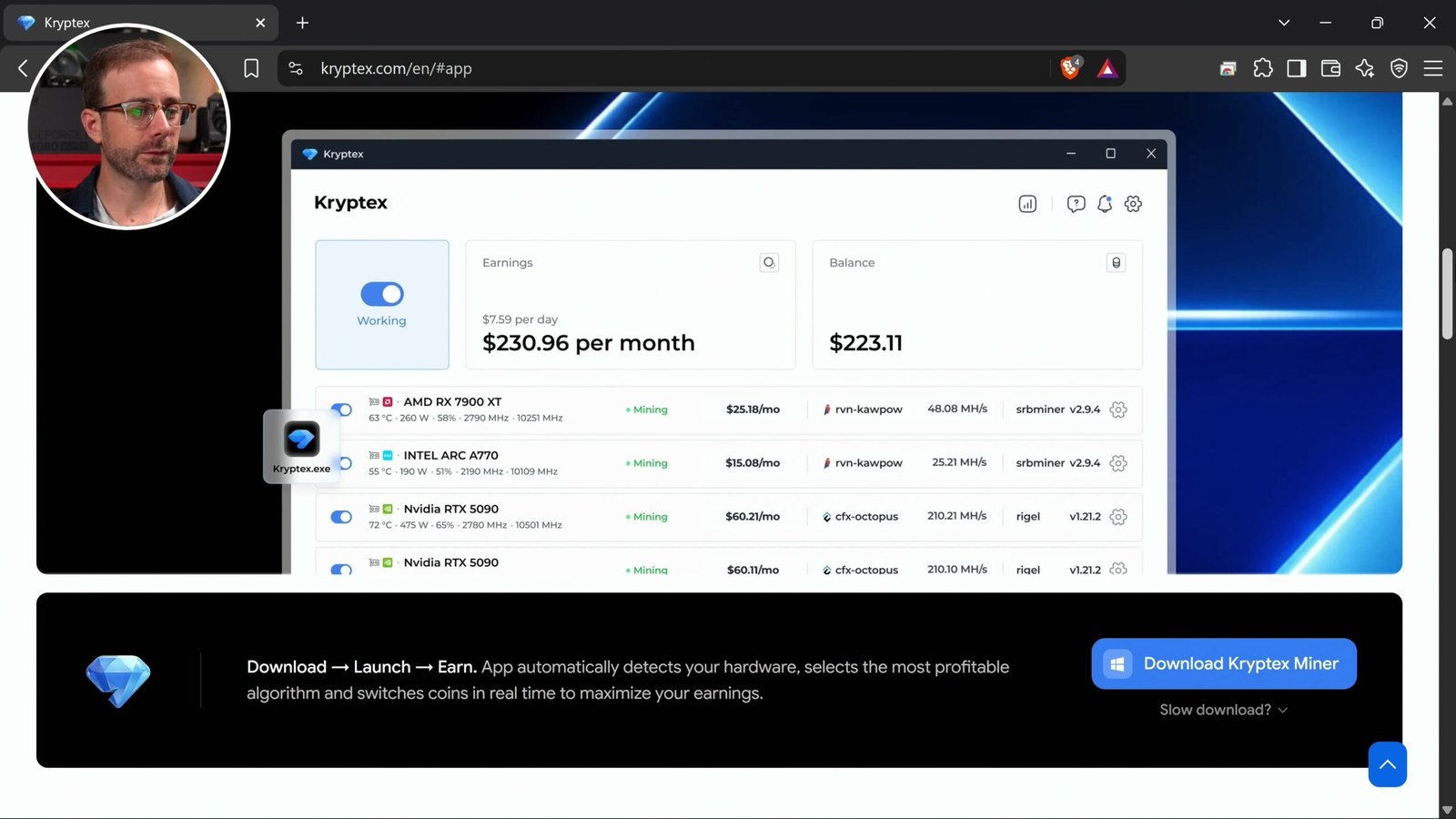
Step 1: Download and Install Kryptex
To keep this as simple as possible, we’ll use an application called Kryptex. Head over to their website, click on “Explore Mining Methods,” then scroll down to download the Kryptex Miner software for Windows. Save it to your downloads folder.
- Open the download from your browser’s download list or your downloads folder.
- Double-click the installer to start the process.
- You’ll likely get alerts from your browser or Windows Defender. More on that below.
- Click “More info” and then “Run anyway.”
- While you’re at it, add Kryptex to your Windows Defender exceptions list so you don’t run into problems once you start mining.
- Click “Yes” to allow the app to make changes to your device, agree to the terms, and let the installation finish.
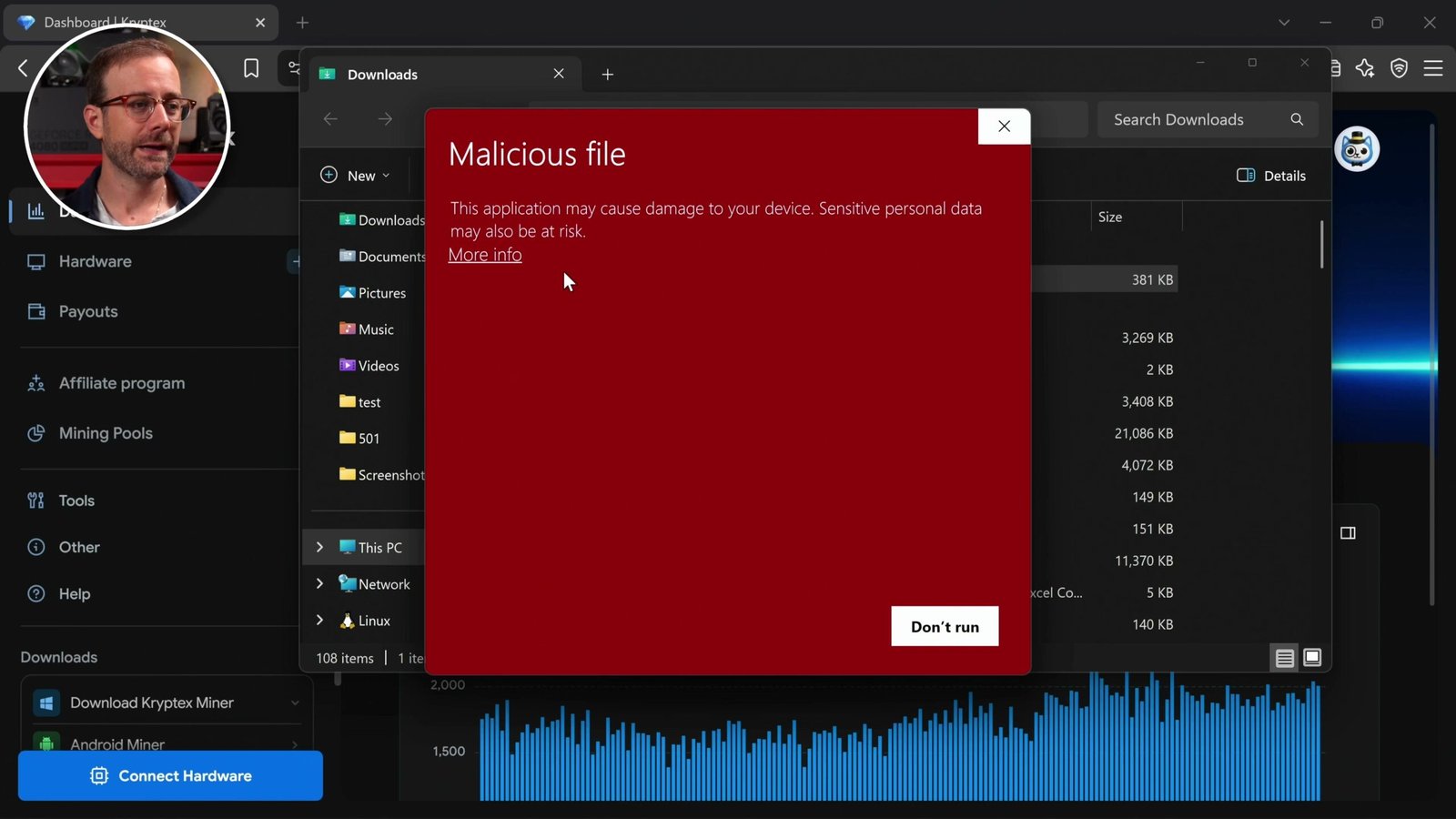
A Quick Word on Those Security Warnings
When you see those alerts, don’t panic. Cryptocurrency mining software itself is not harmful. What’s truly harmful is when these programs are installed on someone’s computer without their consent, which is the bad kind of mining you’ve heard about. But here, you’re installing it yourself, on purpose, so you’re simply giving your own consent. That’s why I click through the warnings and add the exception.
Step 2: Log In and Start Mining
Once the install is done, double-click the Kryptex icon on your desktop and log in. If you don’t have an account, you can create one right from the app by clicking the button at the bottom. I already have an account, so I just log in.
As soon as you’re logged in, Kryptex automatically scans your computer for mining-capable hardware and starts mining with it, in the most profitable, automatic way possible. In my case, it immediately started mining Monero on my CPU and Pearl on my GPU. For this guide, I disabled the processor from mining so we can focus entirely on the graphics card.
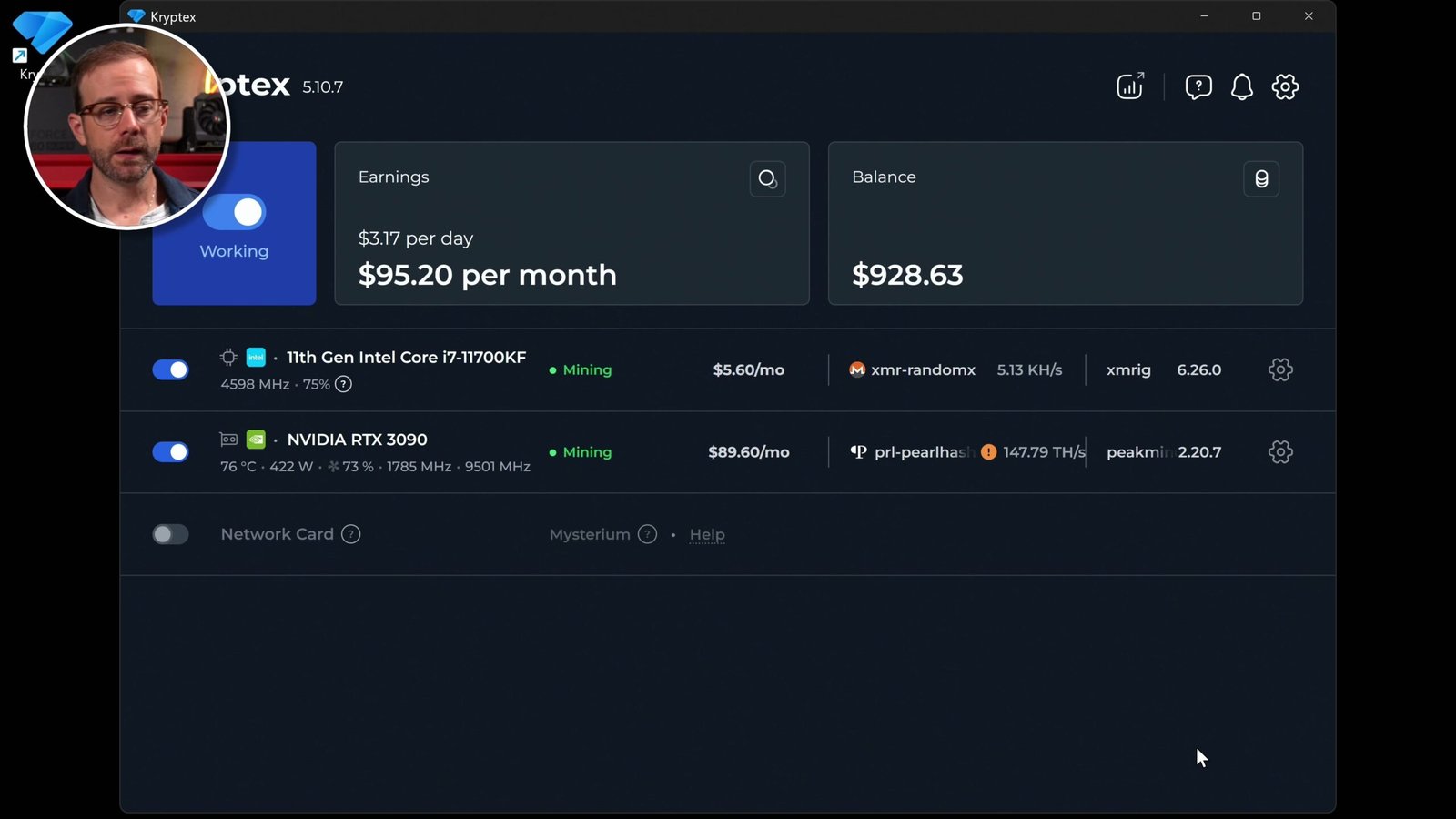
Step 3: Read Your Performance Metrics
Inside the app you’ll see a set of live performance metrics for your card. These are the numbers you want to keep an eye on:
- Card temperature: how hot your GPU is running
- Power draw: mine was pulling 413W out of the box
- Fan speed: your cooling response
- Core and memory frequencies: the clock speeds we’ll tune to get the most out of the card
The app estimated roughly $100 per month on my card. Now, I know what you’re thinking: “Mike, you’ve got an RTX 3090, that’s a powerful card.” You’re right, but it’s an older card now. For all its power, it draws a lot of energy for its performance, which eats into net profit. If you have a newer 40- or 50-series card, you’re probably doing even better than I am.
Step 4: Calculate Your Real Daily Profit
That $100-per-month figure is gross. It doesn’t include what I pay the electric company. To find your real profit, head into the control panel and open Kryptex’s mining calculator. Select your card, then enter your residential electricity cost (around 20 cents per kWh is a decent estimate these days).
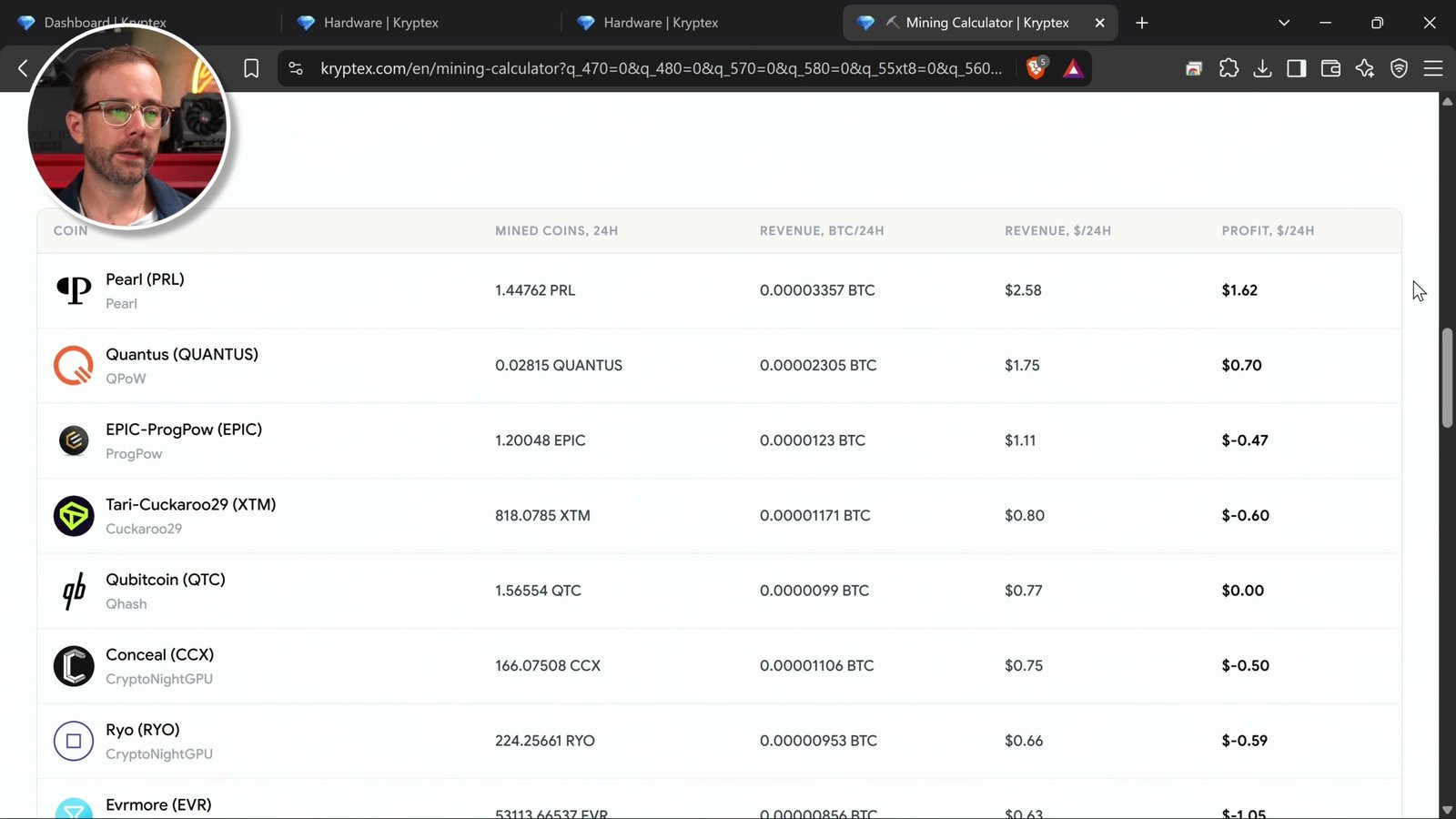
On my 3090, after deducting electricity, my daily earnings came to about $1.62. Here’s how a few popular cards stack up at the same electricity price:
| Graphics Card | Generation | Estimated Daily Profit (after .20c power) |
|---|---|---|
| RTX 3090 | 30-series | ~$1.62 |
| RTX 4090 | 40-series | ~$5.00 |
| RTX 5070 Ti | 50-series | ~$2.66 |
The 4090 earns the most because it offers far better performance with much lower power consumption than my old 3090. The point is: your card matters, and your electricity rate matters just as much as your hashrate.
Step 5: Overclock Your GPU for More Bitcoin Per Watt
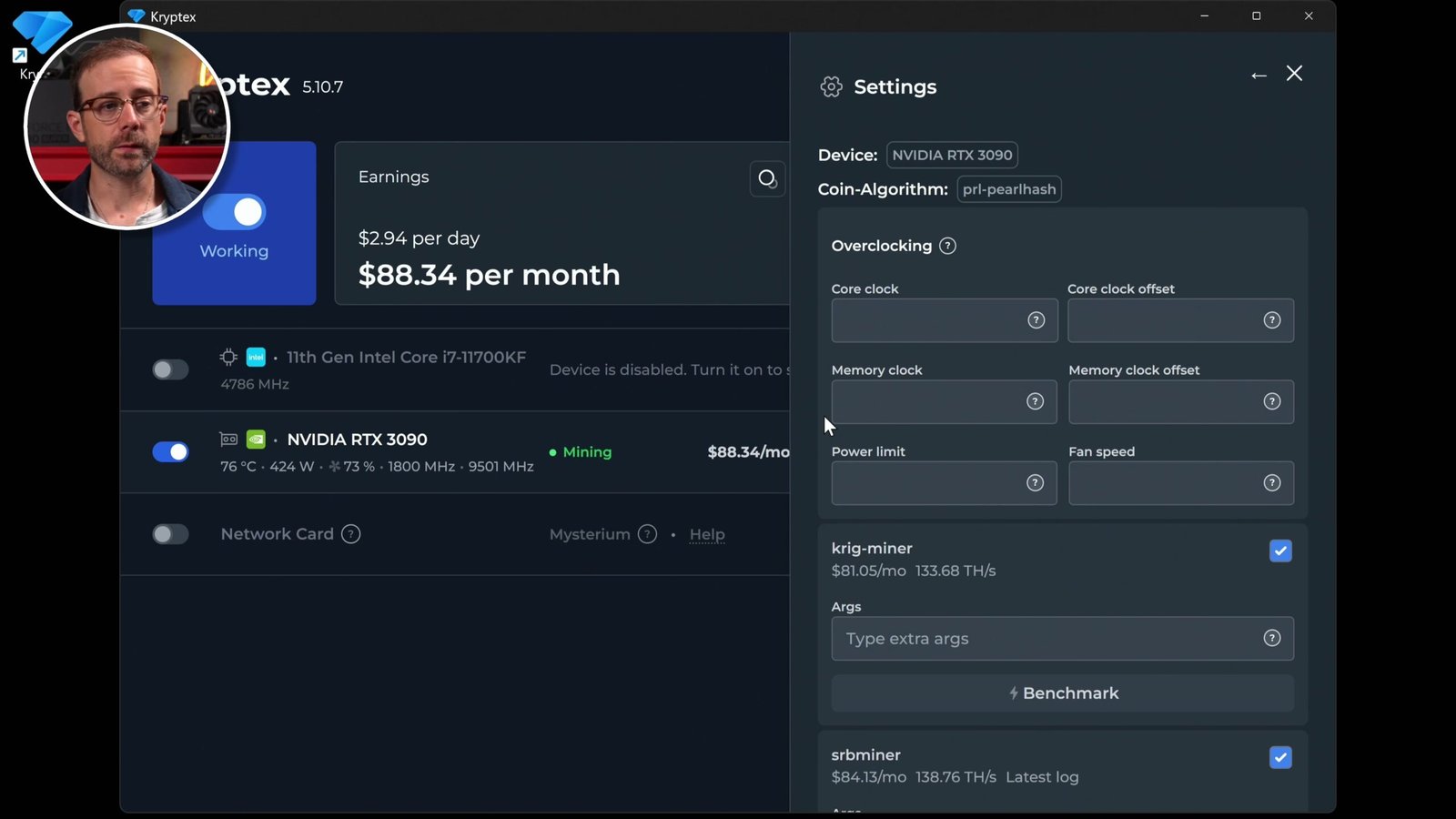
Here’s where the real magic happens. One thing you’ll notice in the calculator is that its default numbers assumed my 3090 runs at 125 terahash at 200 watts. In reality I was getting better hashrate, around 145 to 150 TH/s, but consuming way more power, over 400 watts. That’s inefficient, and it’s exactly what we want to fix.
The Easy Way: Set a Power Limit
Click the gear icon next to your card to open the overclocking control panel. If you’re brand new to this, don’t be intimidated. The simplest option is to just set a power limit that caps how much the GPU draws. Done. That alone can improve your efficiency.
Use the Community Overclock Database
Kryptex also has an overclocking database in their Tools section where the community shares the exact settings they use and the performance they get. Just find your card (I searched the RTX 3090), choose the algorithm for the coin you’re mining (Pearl, in my case), and hit search. You’ll see real results and the exact memory and core settings people used to get them.
Tuning Memory and Core Frequencies
I like to go a little further than the community settings. Here’s the process I followed:
- Lower the memory frequency. Mine was sitting at 9501, which is way more than this coin needs. I dropped it to 810 and waited for the update. The result? I saved about 20 watts with zero change in performance, a lower electric bill for the same Bitcoin.
- Lower the core frequency. Next I opened the core settings and brought the frequency down to around 1600. The miner restarted, and when I checked the results, power had dropped all the way to 230 watts.
Here’s the key insight: my hashrate dropped from 150 to 132 TH/s, and my gross monthly estimate fell from about $90 to $80, but my power consumption dropped much more than my performance did.
Why Efficiency Beats Raw Hashrate
Let’s run the numbers through the calculator to prove it. At my starting point, 150 TH/s pulling 435 watts at 20 cents per kWh, my real daily profit was just 97 cents, because I was paying nearly two dollars a day in electricity. With the tuned settings, 131 TH/s at 240 watts, my daily profit jumped to $1.52. Lower electric bill, more Bitcoin in my pocket.
That’s why it’s absolutely worth taking a few minutes to tinker with your GPU. For 99% of people, adjusting memory speed and core speed is all you need. Stop there, and know you’re getting more Bitcoin for the power you’re using.
Step 6: Get Paid and Withdraw Your Bitcoin
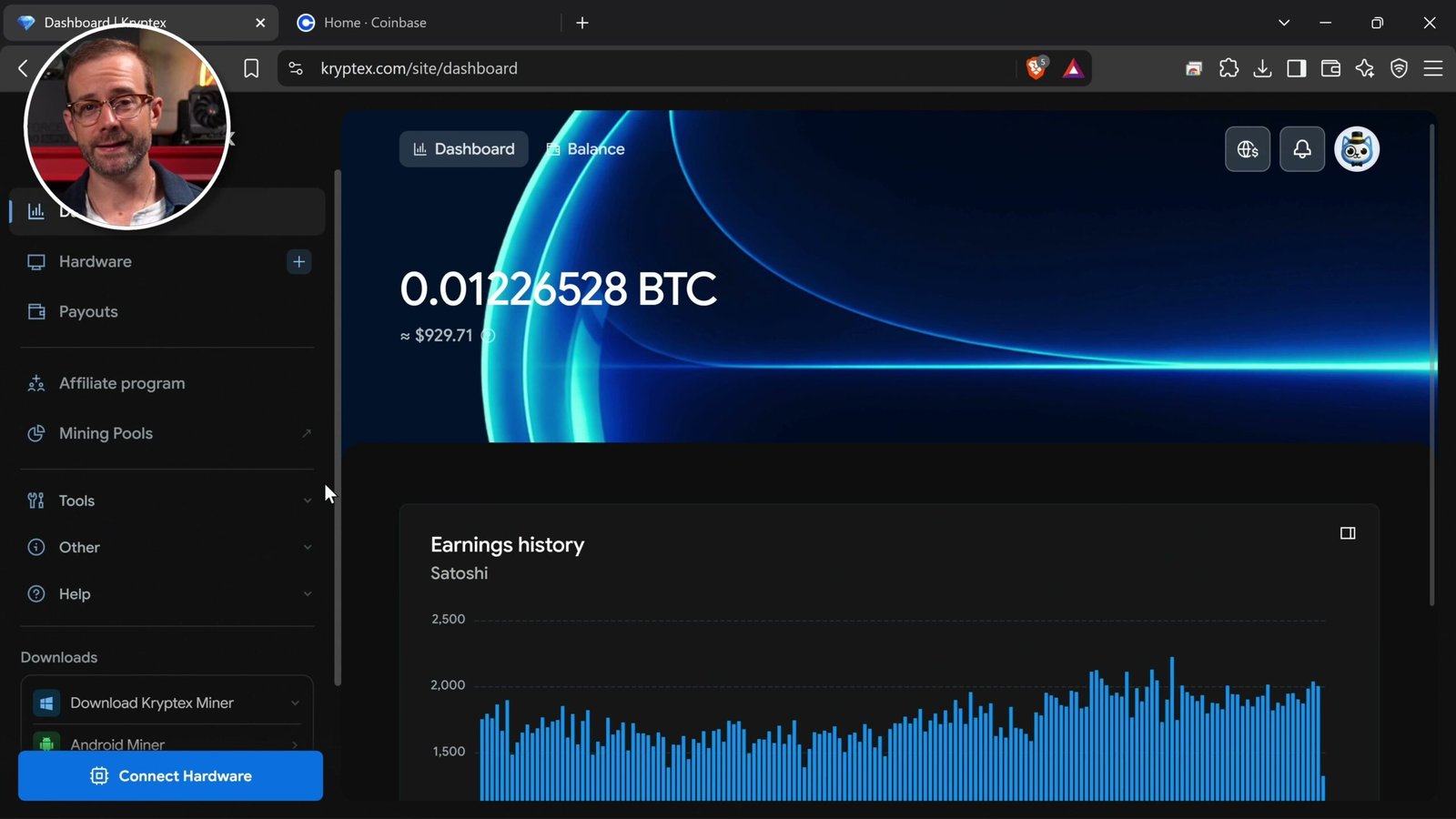
Now your computer and GPU are set up, mining crypto, and earning Bitcoin. You can see every bit of it on the Kryptex dashboard, where your balance updates in real time. On mine, I’d earned 0.0122 Bitcoin, worth more than $900 at the time.
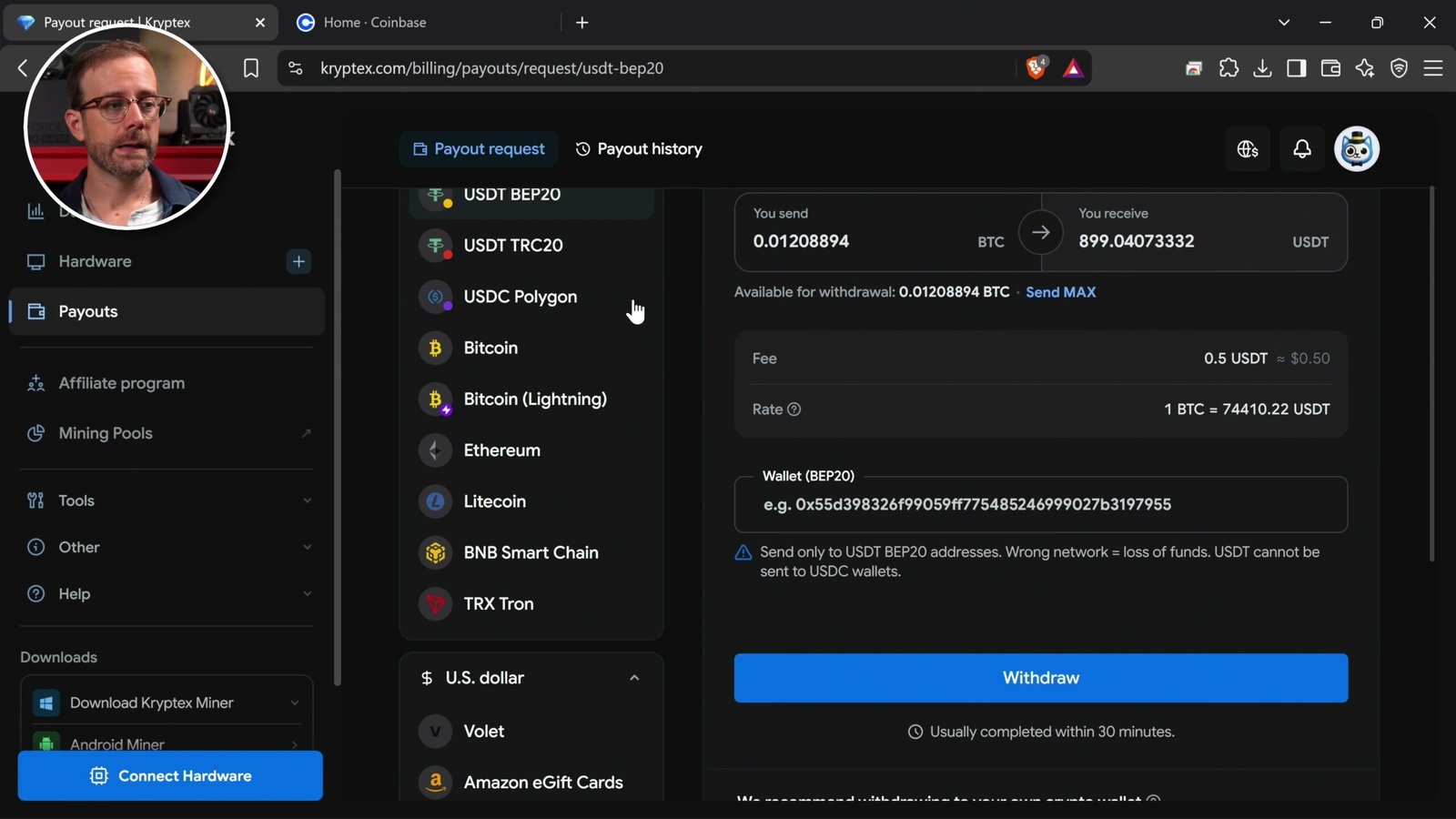
To cash out, click Payments in the left sidebar. Select Bitcoin, choose the amount you want to send, and enter your Bitcoin wallet address. That’s it.
My Preferred Payout Method
The easiest option, in my opinion, is to sign up for a Coinbase account. Inside Coinbase, go to receive crypto, click Bitcoin, and copy your Bitcoin address. Paste it into the wallet field in Kryptex, confirm the transfer, and your Bitcoin will show up on Coinbase.
From there you have choices:
- Sell it for cash: convert the Bitcoin to US dollars and send it straight to your bank account.
- Hold it long term: leave it in your wallet and speculate on the price rising over time.
- Use Kryptex’s other options: you can also redeem your earnings for Amazon gift cards and a few other destinations.
Personally, my method is always the same: acquire Bitcoin and hold it for the long term.
Where to Buy a GPU for Mining
If you don’t already have a capable graphics card, a newer NVIDIA 40- or 50-series card will give you far better efficiency and profit than an older card like my 3090. Before you buy, check current availability and pricing, and run your numbers with your local electricity rate so you know what to expect. And remember, if you’ve got a gaming rig that sits idle most of the day, you may already have everything you need.
Watch the Full Video Guide
If you want to follow along with every click (the install, the dashboard, and the live overclocking adjustments), watch the full video above. And if it helped you out, subscribe to the channel so you don’t miss the next one.
Frequently Asked Questions
Is mining cryptocurrency on my PC safe for my hardware?
Mining puts a sustained load on your GPU, so keep an eye on your card temperature and fan speed in the dashboard. In fact, lowering your power draw through overclocking (as I did, dropping from 435W to 240W) runs the card cooler while still earning Bitcoin. Keeping your GPU clean and cool is the best thing you can do for its longevity.
Why am I mining Monero or Pearl instead of Bitcoin?
Kryptex automatically finds and mines the most profitable cryptocurrency your hardware can handle at any given moment. That might be Monero on your CPU or Pearl on your GPU. You still get paid in Bitcoin. If a different coin becomes more profitable, the app switches to it automatically.
How much can I actually earn mining on my PC?
It depends entirely on your card and your electricity cost. After power, my older RTX 3090 earned about $1.52 a day once tuned. A 5070 Ti was around $2.66, and a 4090 was over $5. Always subtract your electricity cost. That’s your real profit.
Do those Windows security warnings mean the software is a virus?
No. Mining software itself isn’t harmful. The warnings exist because mining software is dangerous when installed on someone’s computer without their consent. Since you’re installing it yourself on purpose, you can safely click through and add it to your Windows Defender exceptions.
What should I do with the Bitcoin I earn?
You can withdraw to a Bitcoin wallet, send it to Coinbase to sell for cash and transfer to your bank, redeem Kryptex rewards like Amazon gift cards, or simply hold it long term. My preferred approach is always to acquire Bitcoin and hold.
More Bitcoin Mining Guides
- Bitcoin Mining for Beginners: Everything You Need to Start
- The Best Home Solo Bitcoin Miners, Ranked
- Auto-Overclock Your Bitaxe & Nerdaxe: Best Settings Guide
- How to Set Up a Bitaxe to Mine Bitcoin
- I GPU Mined $500 in Bitcoin in 7 Days
- How To Set Up a Bitaxe To Mine Bitcoin (Step-by-Step Guide)
- Is Now the Best Time to Buy a Bitcoin Miner?
- I Rented Thousands of Bitcoin Miners for 2 Hours
I hope this helped you set up and start mining on your gaming PC while it’s idle. It can be a genuinely interesting source of passive income, especially if you’re betting on Bitcoin’s price rising over time. Please take care of yourself and each other, and I’ll see you in the next video.