
The Bitaxe is one of the most popular small Bitcoin miners designed for home users. It’s compact, open-source, and extremely efficient compared to traditional ASIC miners.
In this guide, I’ll walk you through how to set up a Bitaxe to mine Bitcoin step by step, including:
- Connecting the miner to power
- Configuring WiFi
- Accessing the AxeOS dashboard
- Setting up solo mining or pool mining
- Optional overclocking for more performance
If you just bought a Bitaxe — or are thinking about getting one — this guide will help you get mining quickly.
If you’re still deciding which miner to buy, check out my guide to the top home solo Bitcoin miners, where I compare the best small Bitcoin miners available today.
👉 [Best Home Solo Bitcoin Miners]
If you’d prefer to follow along in a video, check out my YouTube video below:
Table of Contents
- What Is a Bitaxe?
- Bitaxe Generations and ASIC Chips
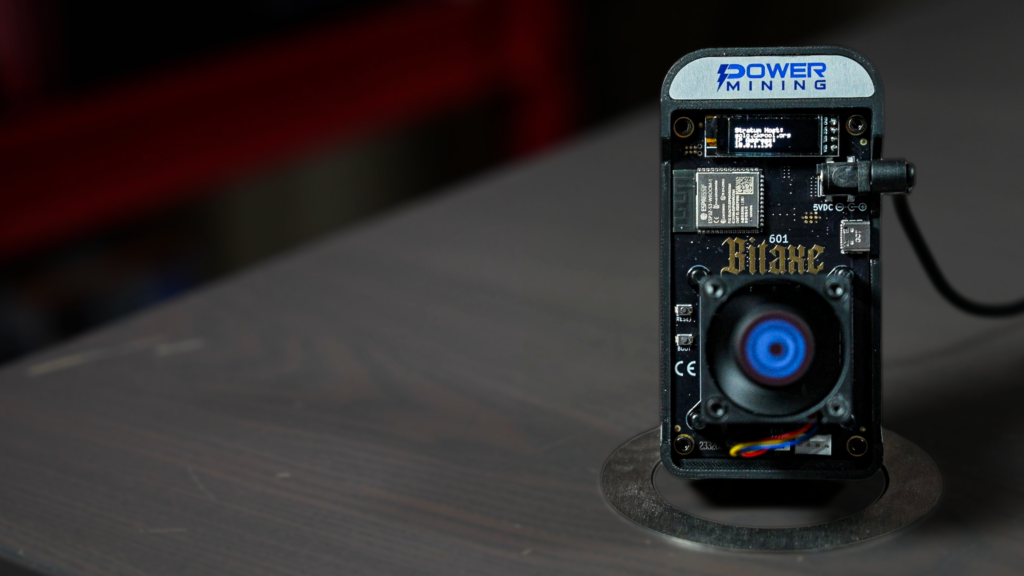
- Bitaxe Hardware Overview
- Step 1: Power On the Bitaxe
- Step 2: Connect to the Bitaxe WiFi Network
- Step 3: Configure Your Home WiFi
- Step 4: Access the Bitaxe Dashboard
- Step 5: Update Firmware
- Understanding the Dashboard Metrics
- Step 6: Configure Solo Mining
- Optional Overclocking
- Is a Bitaxe Profitable?
- Watch the Full Video Guide
- Frequently Asked Questions
What Is a Bitaxe?
The Bitaxe is a small open-source Bitcoin ASIC miner designed for home mining. Unlike large industrial mining machines, Bitaxe units:
- Use very little electricity
- Run quietly
- Fit easily on a desk or shelf
- Allow enthusiasts to learn how Bitcoin mining works
The model used in this guide is the Bitaxe Gamma 601, which typically produces:
- ~1.1 TH/s hashrate
- ~15–17 J/TH efficiency
- ~25–30 watts of power usage
While it won’t compete with large mining farms, it’s perfect for learning and experimenting with Bitcoin mining at home.
Where to Buy a Bitaxe
If you’re looking to get started with a Bitaxe, here are a few trusted vendors that regularly stock them.
👉 Check current Bitaxe availability
Bitaxe Generations and ASIC Chips
Swipe left/right to view the full table on mobile.
| Bitaxe Generation | Example Models | Bitmain ASIC Chip | Chip Origin | Chips per Device | Hashrate per Chip | Typical Total Hashrate |
|---|---|---|---|---|---|---|
| Bitaxe 100 Series | Bitaxe Max | BM1397 | Antminer S17 | 1 | ~400 GH/s | ~0.4 TH/s |
| Bitaxe 200 Series | Bitaxe Ultra | BM1366 | Antminer S19 XP | 1 | ~500 GH/s | ~0.5 TH/s |
| Bitaxe 300 Series | Bitaxe Hex | BM1366 | Antminer S19 XP | 6 | ~500 GH/s | ~3.0 TH/s |
| Bitaxe 400 Series | Bitaxe Supra | BM1368 | Antminer S21 | 1 | ~700 GH/s | ~0.7 TH/s |
| Bitaxe 500 Series | Bitaxe Supra Hex | BM1368 | Antminer S21 | 6 | ~700 GH/s | ~3.5 TH/s |
| Bitaxe 600 Series | Bitaxe Gamma | BM1370 | Antminer S21 Pro | 1 | ~1.2 TH/s | ~1.2 TH/s |
Bitaxe Performance Improvements by Generation
Swipe left/right to view the full table on mobile.
| Generation | ASIC Chip | Hashrate per Chip | Performance Increase | Example Model |
|---|---|---|---|---|
| 2023 | BM1397 | ~400 GH/s | Baseline | Bitaxe Max |
| 2023 | BM1366 | ~500 GH/s | ~25% faster | Bitaxe Ultra |
| 2024 | BM1368 | ~700 GH/s | ~75% faster | Bitaxe Supra |
| 2024-2025 | BM1370 | ~1.2 TH/s | ~200% faster | Bitaxe Gamma |
Modern Bitaxe miners can produce more than double the hashrate per chip compared to earlier versions.
Bitaxe Hardware Overview
A typical Bitaxe includes:
- Display screen showing IP address and status
- WiFi module for network connection
- Large heatsink and fan cooling the ASIC chip
- Power input
- USB-C configuration port
- Boot and reset buttons
Inside the device is a Bitcoin ASIC chip performing SHA-256 hashing.
Step 1: Power On the Bitaxe
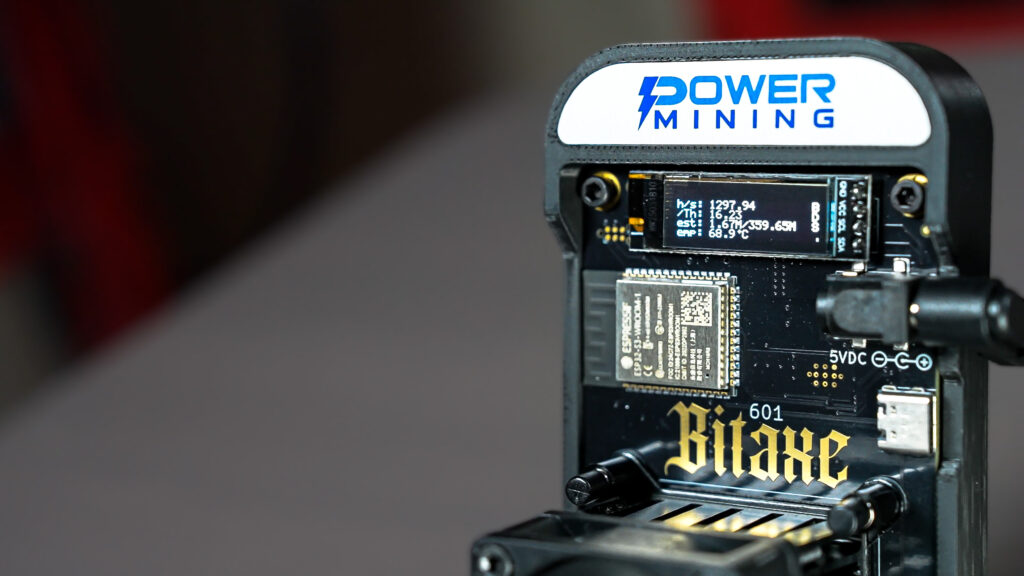
Plug the Bitaxe into power.
When the device boots:
- The fan spins up
- The display turns on
- Instructions for WiFi setup appear
The Bitaxe creates a temporary WiFi network so you can configure it.
Step 2: Connect to the Bitaxe WiFi Network
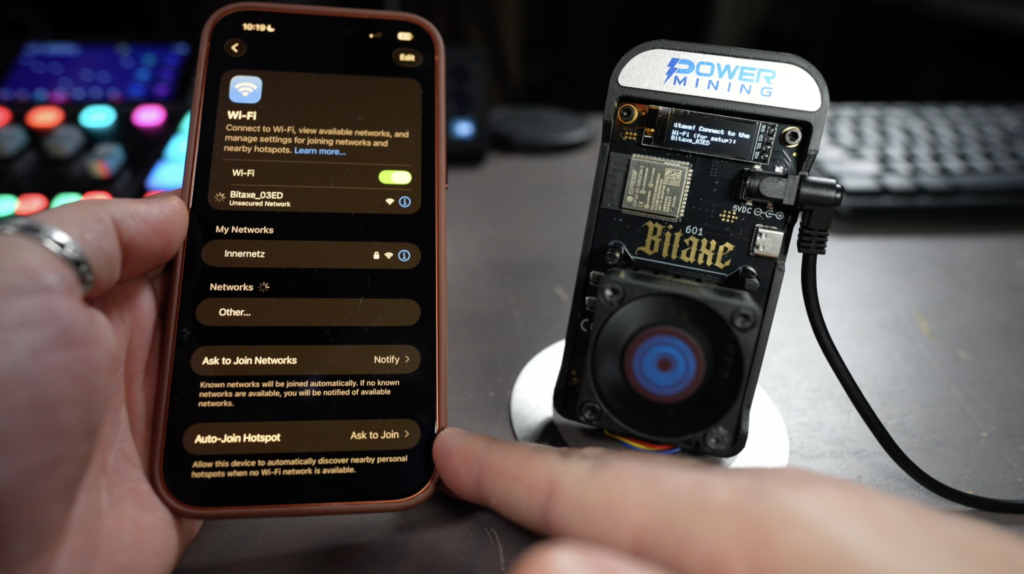
Using your phone or computer:
- Open WiFi settings
- Look for a network named something like:
Bitaxe_XXXX
- Connect to the network.
A configuration page should automatically open.
Step 3: Configure Your Home WiFi
In the setup portal:
- Enter your WiFi SSID
- Enter your WiFi password
- Click Save and Restart
The Bitaxe will reboot and connect to your network.
Step 4: Access the Bitaxe Dashboard
Open a browser and enter the IP address displayed on the Bitaxe screen.
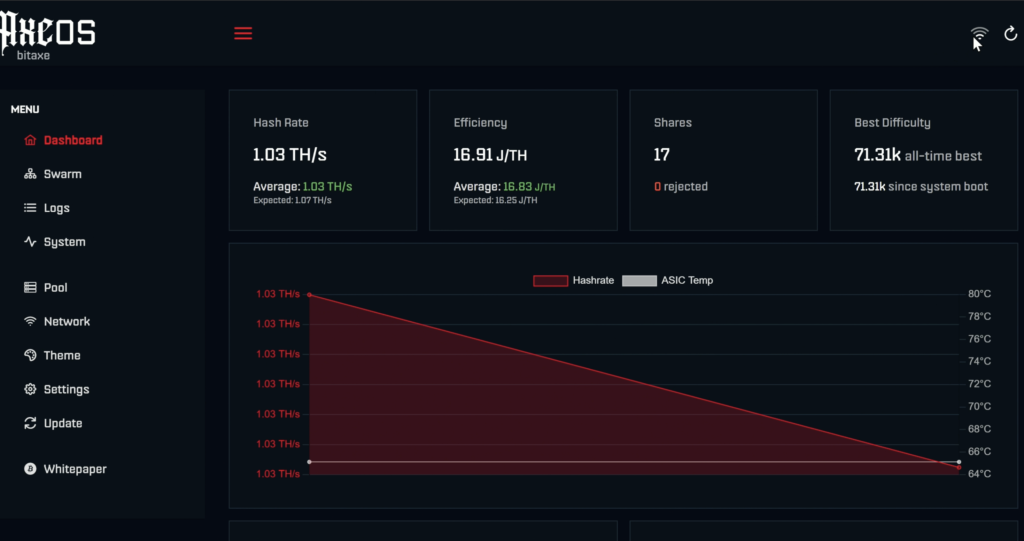
This loads the AxeOS dashboard, where you can monitor:
- Hashrate
- Efficiency
- Temperature
- Power consumption
- Mining pool connection
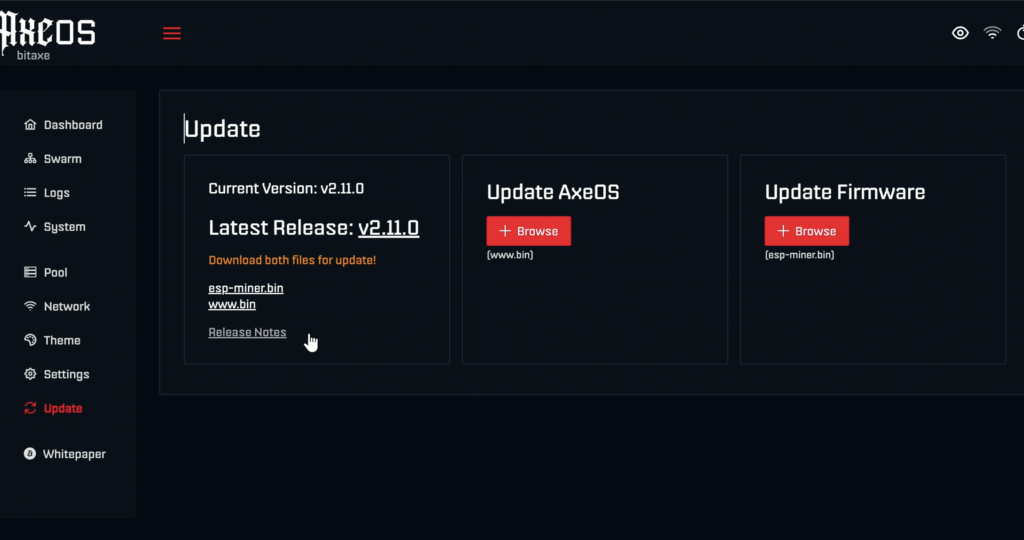
Step 5: Update Firmware
Before mining, update to the latest firmware version.
Inside AxeOS:
- Navigate to Update
- Download the latest firmware
- Upload the firmware file
- Install and reboot
Firmware updates improve stability and performance.
Understanding the Dashboard Metrics
Hashrate
The amount of Bitcoin mining work being performed per second. Each hash is a guess to meet the required target to produce a valid Bitcoin block.
Example: ~1.1 TH/s
Efficiency
Measured in Joules per Terahash (J/TH). This is a measurement of how much compute performance the Bitaxe is producing for the amount of power it is using.
Lower numbers mean better efficiency.
Shares
Shares represent work submitted to the mining pool that is connecting you to the Bitcoin network. Accepted shares mean the pool is recognizing the work your Bitaxe is doing as valid hashing.
Rejected shares may indicate:
- Network issues
- Pool problems
- Overclocking instability
Temperature
Typical ASIC temperatures are around 40–60°C. Lower is better too keep the ASIC cheap performing at its best.
Step 6: Configure Solo Mining
Many Bitaxe owners choose solo mining. Solo mining means your device attempts to find an entire Bitcoin block.
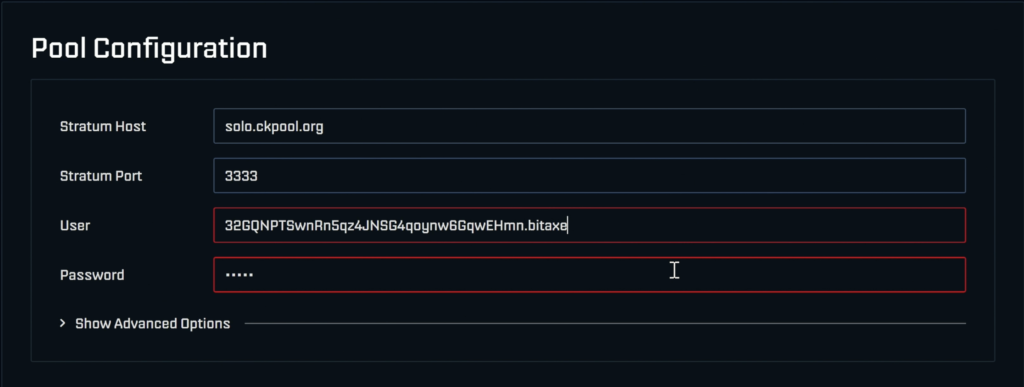
Here’s an example configuration to enter into the Pool Configuration section of AxeOS.
Example configuration using CKPool:
Stratum Host: solo.ckpool.org
Stratum Port: 3333
User: yourbitcoinaddress.yourworkername
Password: x
Start Mining
Once pool settings are saved:
- Click Save
- Restart the miner
Within a few minutes you should see:
- Hashrate activity
- Accepted shares
- Pool connection
Your Bitaxe is now mining Bitcoin.
Optional Overclocking
AxeOS allows advanced tuning such as:
- Core voltage
- Frequency
Increasing these may increase hashrate but also increases:
- Heat
- Power consumption
The Bitaxe includes overheat protection that resets the miner if temperatures become too high.
Check out my full Bitaxe overclocking video here:
Is a Bitaxe Profitable?
Most people buy Bitaxe miners for learning and experimentation rather than profit.
However they offer several advantages:
- Extremely low power usage
- Quiet operation
- Participation in the Bitcoin network
- A fun solo mining lottery opportunity
Every 10 minutes a new Bitcoin block is created, and technically your Bitaxe has a chance to find one.
Estimated solo mining odds for a 1.2 TH/s Bitcoin miner.
This calculation uses the current Bitcoin network difficulty and assumes fully solo mining. Actual results vary due to mining luck.
Watch the Full Video Guide
Ready to Try Mining?
If you're interested in running a small Bitcoin miner at home, the Bitaxe is one of the easiest ways to get started.
Frequently Asked Questions
How much power does a Bitaxe use?
Most Bitaxe miners use around 25–30 watts.
Can you mine Bitcoin at home with a Bitaxe?
Yes. Bitaxe miners are specifically designed for home Bitcoin mining.
What is the hashrate of the Bitaxe Gamma 601?
The Bitaxe Gamma 601 typically produces around 1.1-1.2 TH/s.
Is solo mining with a Bitaxe realistic?
Yes, but the odds are extremely low. Many people treat solo mining as a lottery-style opportunity while supporting the Bitcoin network.
Can I mine Other Cryptocurrencies with a Bitaxe?
Yes, you can mine any cryptocurrency that uses the SHA-256 algorithm. Popular alternative cryptocurrencies to mine include Bitcoin Cash, Digibyte, and Quai.
👉 How to Solo Mine Bitcoin Cash
More Bitcoin Mining Guides
If you're interested in learning more about home Bitcoin mining, check out some of my other guides below.
- How To Fix an Overheating Bitaxe
- How Bitcoin Hardware Wallets Work
- Fluminer T3 Review: Home Bitcoin Mining in 2026
How to Set Up a Bitaxe: What to Do Next
Now that you know how to set up a Bitaxe, take it further — tune your settings, compare miners, and check your odds with these guides: