
Overclocking your Bitaxe or Nerdaxe by hand can eat up hours of tinkering, tweaking voltage and frequency until you finally land on the sweet spot for your Bitaxe overclock settings. In this guide, I’ll show you an amazing benchmarking tool that automates the whole process and finds the best Bitaxe overlock settings for you. We’ll install it, walk through every adjustable parameter, and run a live test on a brand new Bitaxe Gamma++.
In this guide, you’ll learn:
- What the Bitaxe/Nerdaxe benchmarking tool does and who it’s for
- How to install the tool with Docker Desktop step-by-step
- How to add your miners to the dashboard for monitoring
- The difference between adaptive and grid sweep modes
- Every parameter you can adjust and what each one means
- How to safely push a Bitaxe Gamma++ toward higher hash rates
Table of Contents
- What Is the Bitaxe & Nerdaxe Benchmarking Tool?
- Step 1: Download the Tools You Need
- Step 2: Configure Docker Desktop
- Step 3: Build the Docker Image
- Step 4: Create and Run the Container
- Step 5: Add Your Miners to the Dashboard
- Step 6: Choose Your Sweep Mode
- Step 7: Set Your Parameters
- Step 8: Start the Benchmark
- Where to Buy a Bitaxe Gamma++
- Watch the Full Video Guide
- Frequently Asked Questions
- More Bitcoin Mining Guides
What Is the Bitaxe & Nerdaxe Benchmarking Tool?
The benchmarking tool is a piece of software that automatically finds the best overclock settings for your Bitaxe or Nerdaxe. Instead of manually adjusting core voltage and frequency in AxeOS and waiting to see how each combination performs, this tool runs through combinations for you, records the results, and shows you exactly which settings deliver the best hashrate within the limits you set.
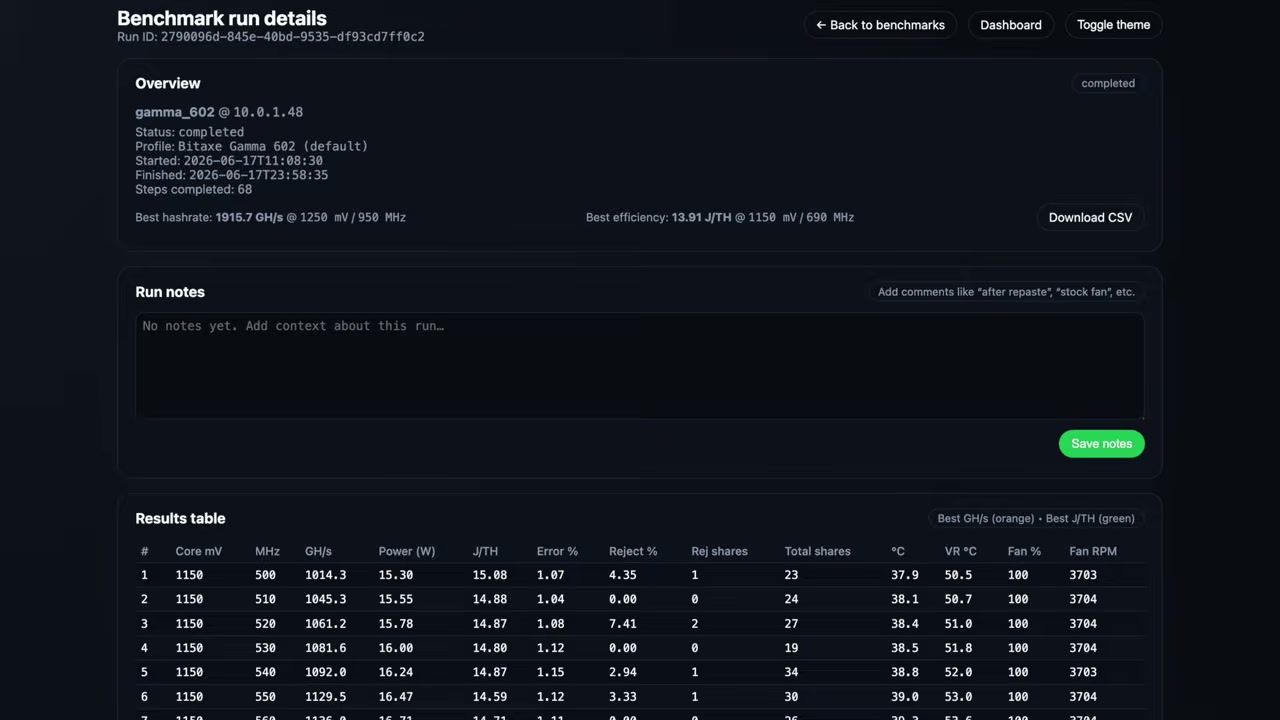
Who is this tool for? If you’ve got a Nerdaxe or a Bitaxe and you like overclocking, tinkering, and finding the best hashrate you can squeeze out of your miner, this tool is for you. It’s going to save you a ton of time because it makes all of that testing automated. It pulls information straight from the APIs that AxeOS exposes, so it can monitor performance and log results as it works.
The Test Miner: Bitaxe Gamma++
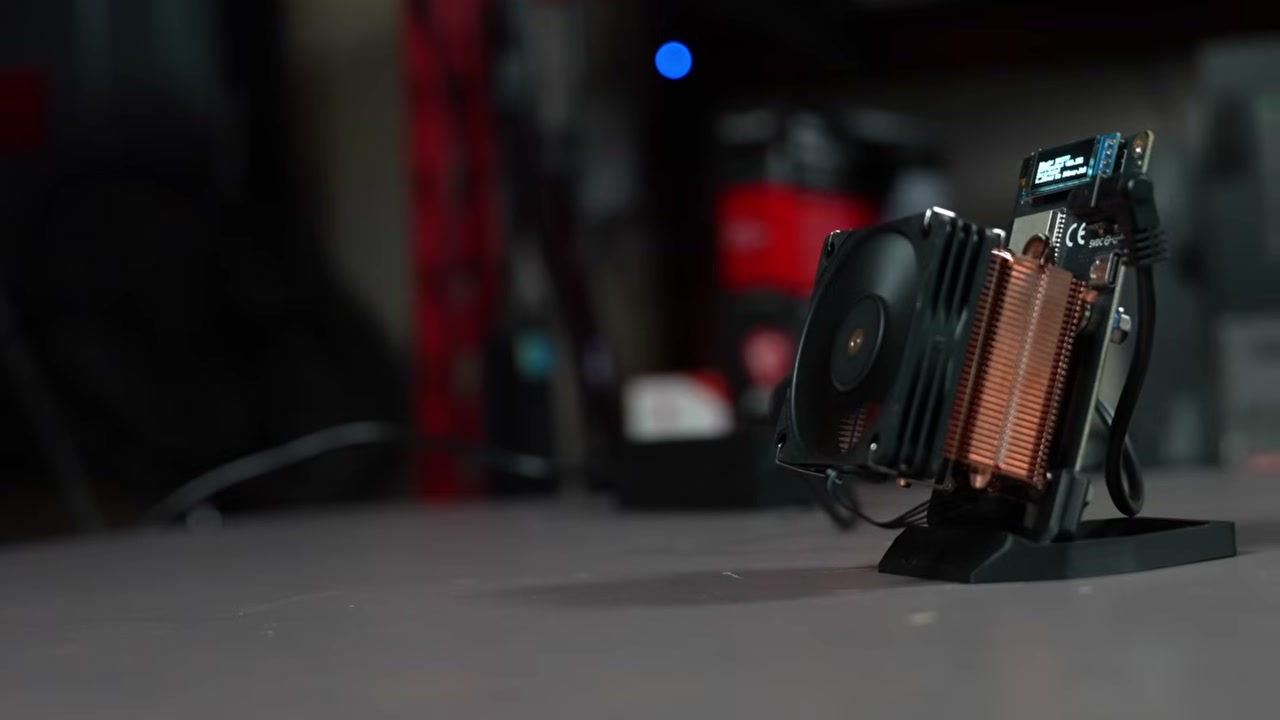
For this walkthrough I’m using a brand new Bitaxe Gamma++. This one stands out because of that big copper heat sink, and it’s still a single-chip Bitaxe. A normal Bitaxe Gamma can get about 1.2 terahash per second when overclocked if you’re lucky. This one claims it can reach up to 2 terahash per second thanks to its improved cooling. I’ve never seen a single-chip Bitaxe hit 2 TH/s, so I wanted to test that claim using this tool.
Step 1: Download the Tools You Need
You only need two tools to get started, and both links will be in the video description.
- The benchmarking tool itself — download the latest version zip file from the releases on the GitHub page.
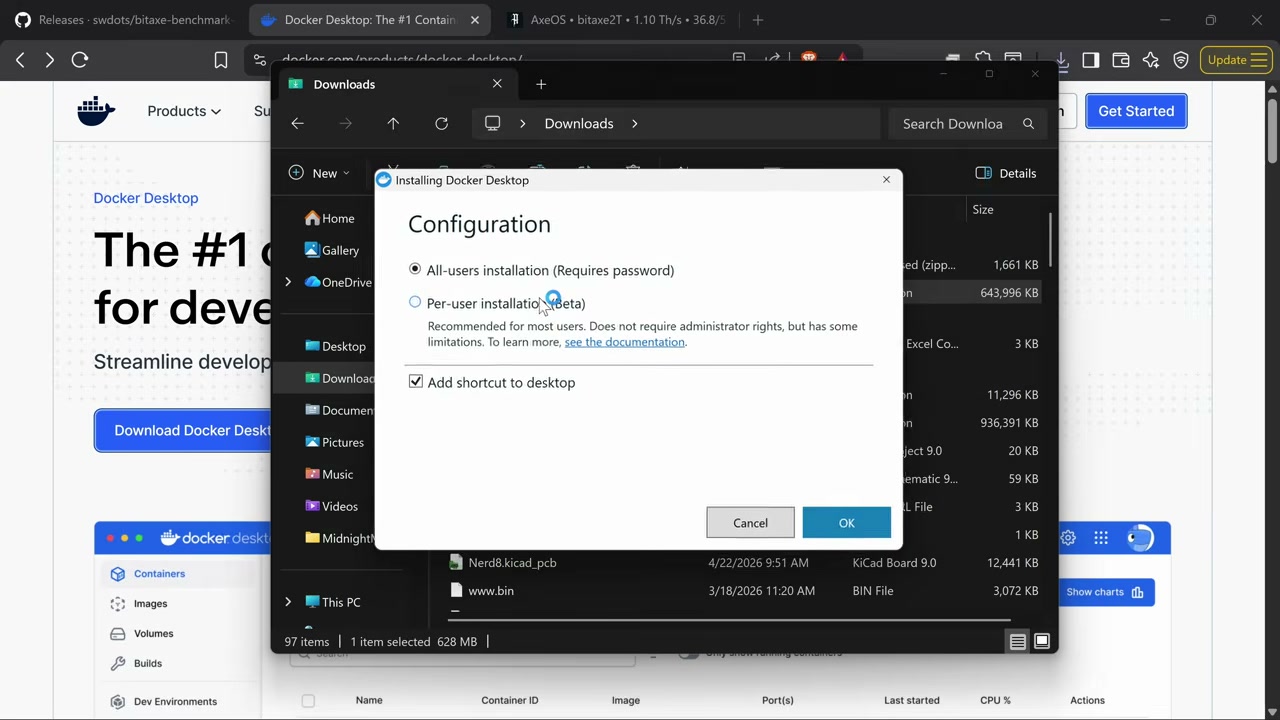
- Docker Desktop for Windows AMD64 — download this directly from Docker.
Once both are downloaded, head over to your Downloads folder and install Docker Desktop first. Then unzip the benchmarking tool by extracting all files to the same location.
Step 2: Configure Docker Desktop
Open Docker Desktop and run through the initial configuration. Accept the terms, and you can simply skip creating an account when prompted. Once it’s open, click on Images and keep an eye on it — we’re about to build an image from PowerShell in the next step.
Step 3: Build the Docker Image
Open Windows PowerShell (it comes installed on your computer). Then follow these steps:
- Type cd (which stands for change directory), then drag the benchmark tool folder right into PowerShell and hit Enter. This navigates you to that directory.
- Build the Docker image by typing: docker build -t bitaxe-benchmark-web:latest . (note the space and period at the end) and hit Enter.
- Wait for the build to finish. When it’s done, go back to Docker Desktop and you’ll see a new image listed under Images.
Step 4: Create and Run the Container
Now we need to build the actual container from that image. In Docker Desktop, hit Run on your new image and open the optional settings:
- Give the container a name — I named mine bitaxe-benchmark.
- Set a host port. I used 8000.
- Set a volume so the tool can save your data. Create a folder called something like bitaxe-benchmarks. This way, if you ever uninstall or reinstall the tool, you won’t lose your benchmarking data.
- Set the container path where it saves internally to /app/data.
- Hit Run.
Head to Containers and you’ll see your benchmarking tool running. Click on the ports link, and it’ll open in a new browser window. Your Bitaxe and Nerdaxe benchmarking tool is now ready to go.
Step 5: Add Your Miners to the Dashboard
The first thing I like to do is go to the Dashboard. Here you can add all of your Bitaxes or Nerdaxes to be monitored for performance. It uses all the APIs that AxeOS exposes to pull in that information.
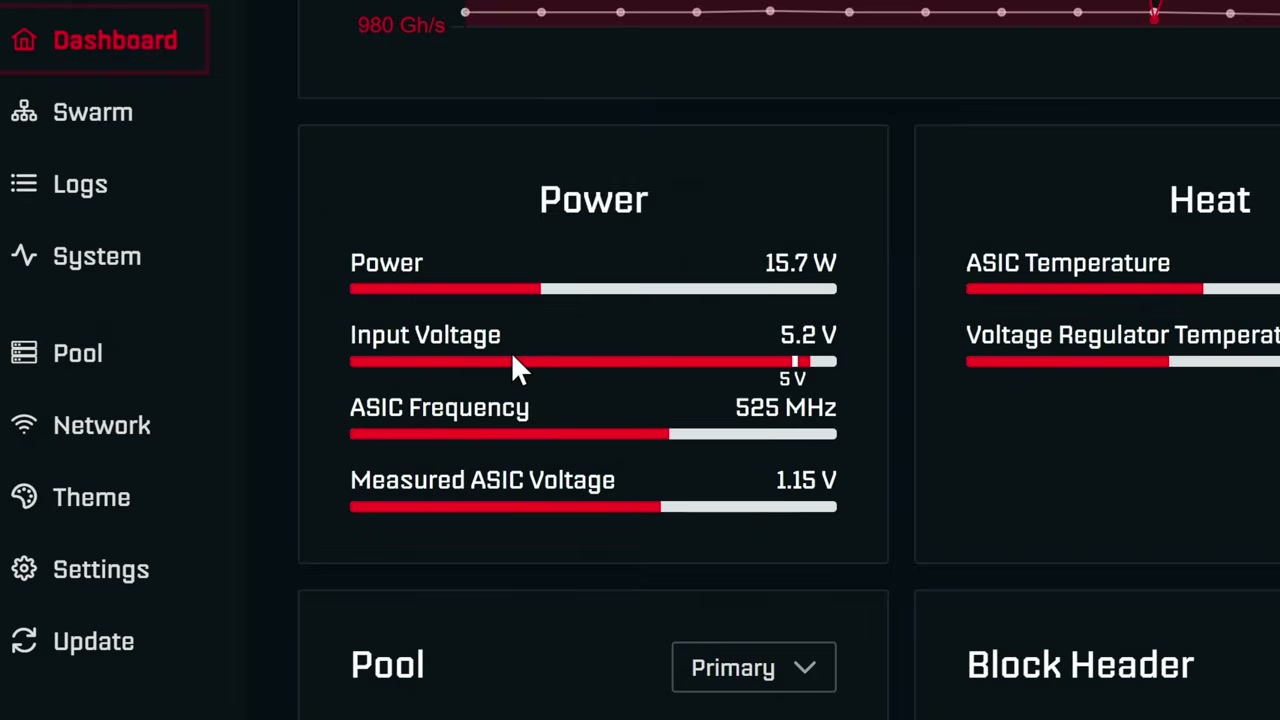
To add a miner, open your Bitaxe in another browser tab and grab its IP address from the URL bar. In my case it was 10.0.1.48. Type it into the dashboard and click Add. Your Bitaxe now appears on the dashboard, and clicking it gives you a ton of live information — shares, performance stats, and more. You can add all of your miners this way and manage them in one place. It’s a really fun way to keep an eye on everything.
Step 6: Choose Your Sweep Mode
To benchmark a miner, go to Known Device and select your device. If your exact device type isn’t listed (only the developer’s included ones show up), just pick Other / Generic. You can save this whole profile and reuse it later.
There are two sweep modes to choose from:
| Sweep Mode | How It Works | Best For |
|---|---|---|
| Adaptive (recommended) | Increases frequency until unstable, then raises voltage to find a good operating point, stopping when your configured limits are hit. | Saving time while still finding great settings |
| Grid Sweep | Tests every frequency at each voltage between your min and max, still stopping when limits are hit. | Testing absolutely everything, exhaustively |
I think of adaptive mode like climbing a ladder. It keeps voltage at a set level and steps up the rungs in frequency until the Bitaxe becomes unstable — meaning it can’t run at that frequency with that voltage, or it’s falling too far short of its calculated hashrate. Then it bumps up the voltage and climbs the ladder again, repeating until it hits the limits you set. I recommend adaptive because it saves time and still helps hit your target.
Step 7: Set Your Parameters
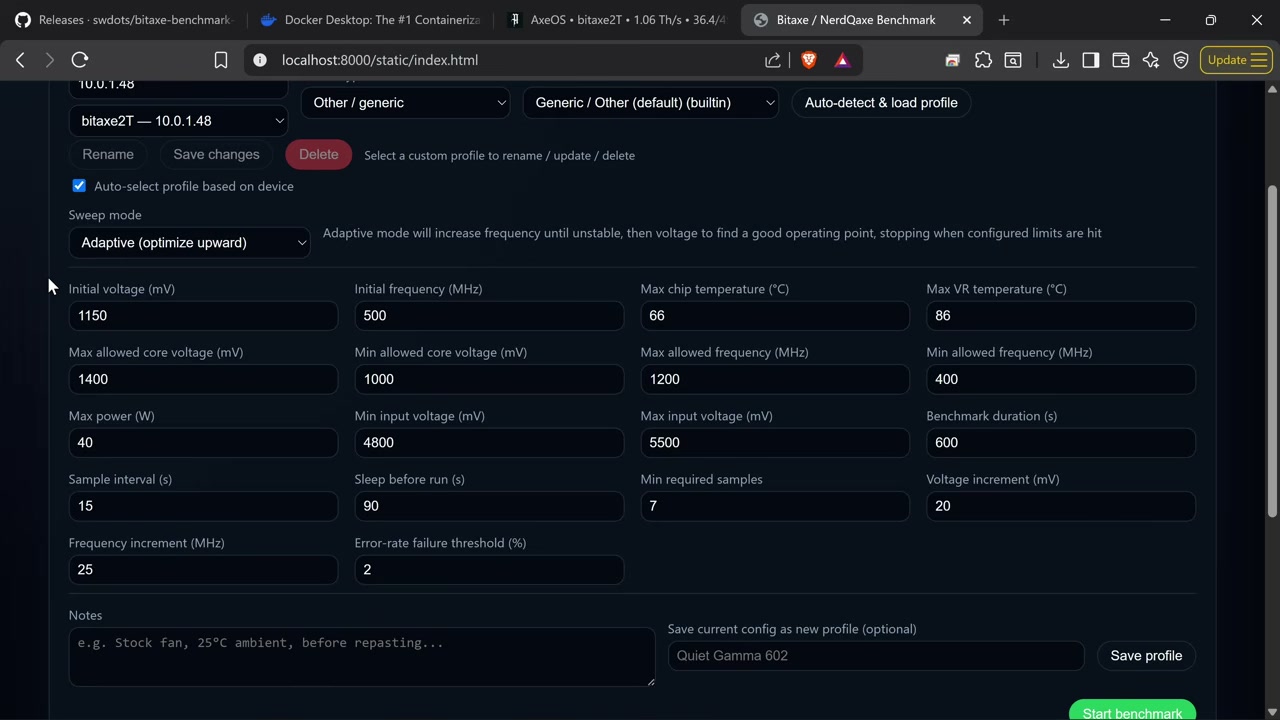
This is where you dial everything in. Some parameters will be familiar if you already overclock in AxeOS, and some are unique to this tool.
Starting Voltage and Frequency
- Initial voltage: Where testing begins. Check your AxeOS defaults for core voltage. You can go as low as 1000 for efficiency, or start at the default for maximum overclocking potential. I like to go a couple rungs below default in case it can run at lower voltage and reach a higher frequency, saving power. For this test I left it at 1150.
- Initial frequency: Default runs at 525. I left mine at 500 since I planned to push beyond that.
Maximum Allowed Limits
- Max allowed core voltage: 1250 is the max in AxeOS before advanced overclocking. I wasn’t going anywhere near that, so I left plenty of room.
- Max allowed frequency: 625 is the max before advanced overclocking. Again, plenty of headroom with a max of 1200 and a minimum of 400.
Temperature and Power Limits
- Maximum chip temperature: If the chip hits this, the test stops. I run around 36°C idle and know it’s fine up to about 70°C, so I set it to 70.
- Max voltage regulator temperature: Based on my own testing with this Bitaxe, I set it to 105°C to give more room and potentially more performance.
- Maximum power: This should match your power supply’s rating. My supply is rated 30W, so you probably should set it to 30. I pushed mine to 40 knowing I was willing to risk the supply for the sake of testing.
Input Voltage (Important!)
Input voltage is measured at the miner. This is a 5V miner (the standard for a Bitaxe), and mine was actually reading 5.2V thanks to a quality power supply. Here’s why this matters: as you overclock, you lose electricity as heat across the power supply and cables. When voltage drops, the miner pulls more power from the wall to make up for it, which can push you well over your supply’s rating.
So I don’t let it drop too far. It defaults to only dropping to 4800 millivolts. I might let it go to around 4700, roughly two or three hundred millivolts under the rating. If you have a super high-quality supply like a Meanwell with adjustable input voltage, that’s a different story and you can raise it. Max input voltage is something I’ve never had to adjust unless you’re running an adjustable supply.
Sampling and Increments
- Benchmark duration (seconds): How long the whole benchmark runs.
- Time between samples: Set to 15 seconds per combination of voltage and frequency.
- Sleep time and minimum required samples: Control how many readings are taken per run.
- Voltage increment: Jumps by 20 by default.
- Frequency increment: Jumps by 25 by default. You can tighten these to 5 for more precise results.
- Error rate failure threshold: In AxeOS you’ll almost always see some hardware errors on the ASIC. Under 2% is usually fine, and that small error rate is worth the extra performance you gain.
Finally, name your configuration (I called mine Gamma++) and save the profile so you can pull up these exact settings again in the future.
Step 8: Start the Benchmark
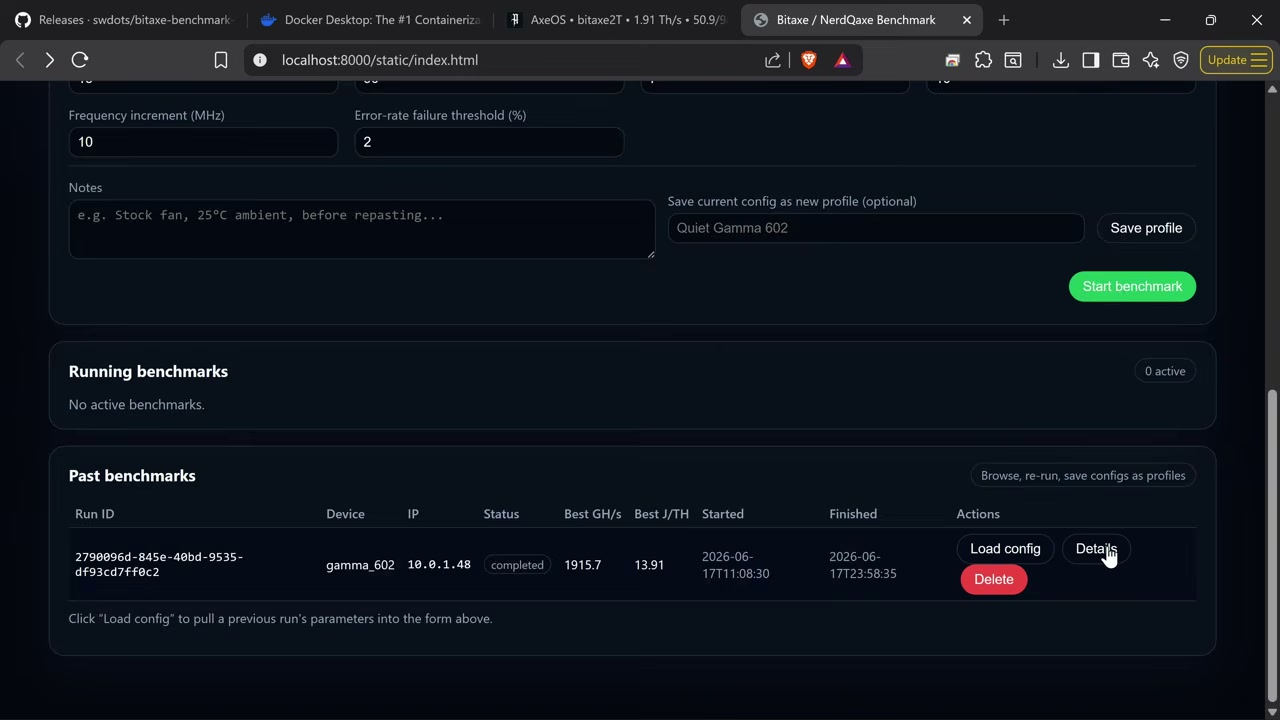
Once everything is configured, just hit Start Benchmark. The tool shows you exactly what it’s testing in real time — in my case it began at 500 frequency and 1150 voltage, exactly what I set up. As it runs, each sample shows up on screen, and clicking Details reveals a full breakdown of every result in a table. Let it run through all the combinations, then come back to review which settings gave you the best hash rate and efficiency.
Where to Buy a Bitaxe Gamma++
The Bitaxe Gamma++ I used in this guide is brand new from Bitcoin Merch, and its copper heat sink is what makes chasing higher hash rates on a single chip possible. If you want to grab one for yourself, check current availability.
Watch the Full Video Guide
Watching the full video makes the install and configuration much easier to follow along with, especially the Docker and PowerShell steps. Head over to the channel, hit play, and subscribe to Red Fox Crypto so you never miss a mining tutorial.
Frequently Asked Questions
What do I need to install the benchmarking tool?
You only need two things: the benchmarking tool zip file from the GitHub releases page, and Docker Desktop for Windows AMD64. Install Docker first, then unzip the tool, build the Docker image in PowerShell, and run the container.
Should I use adaptive or grid sweep mode?
I recommend adaptive mode for most people. It climbs frequency until unstable, then raises voltage to find a good operating point, saving you a lot of time. Grid sweep tests every single frequency at every voltage between your limits, which is thorough but much slower.
How do I protect my power supply while overclocking?
Match the maximum power setting to your power supply’s rating and pay close attention to the input voltage limit. As you overclock, voltage drops and the miner pulls more from the wall to compensate. Setting a sensible minimum input voltage — a couple hundred millivolts under your supply’s rating — keeps you from overloading it.
Can a single-chip Bitaxe Gamma++ really hit 2 TH/s?
The Bitaxe Gamma++ claims up to 2 terahash per second thanks to its copper heat sink and improved cooling, compared to about 1.2 TH/s on a standard overclocked Gamma. That was exactly the claim I set out to test with this tool, since I’d never seen a single-chip Bitaxe reach 2 TH/s before.
Will overclocking cause hardware errors on my Bitaxe?
Yes, some error rate is normal when overclocking — the ASIC chips will have hardware errors as you push performance. An error rate under 2% is generally fine, because the extra performance you gain more than makes up for the small number of errors. The tool lets you set an error rate failure threshold to keep this in check.
More Bitcoin Mining Guides
- How To Set Up a Bitaxe To Mine Bitcoin (Step-by-Step Guide)
- How To Master Bitaxe Overclocking with This Secret Menu
- How to Solo Mine Bitcoin Cash (Bitaxe & Nerdaxe)
Getting the Most From Your Bitaxe Overclock Settings
Once you have dialed in your Bitaxe overclock settings, keep improving the rest of your home mining setup with these guides: